Tous les articles

Front-End

How to edit network responses with only Chrome DevTools

Par Sarah Lancaster2 min de lecture

photo de data center
Photo de data center

This article is a guide to editing network responses using the chrome dev tools.

Here is a simple example app which displays some user cards retrieved from an API.
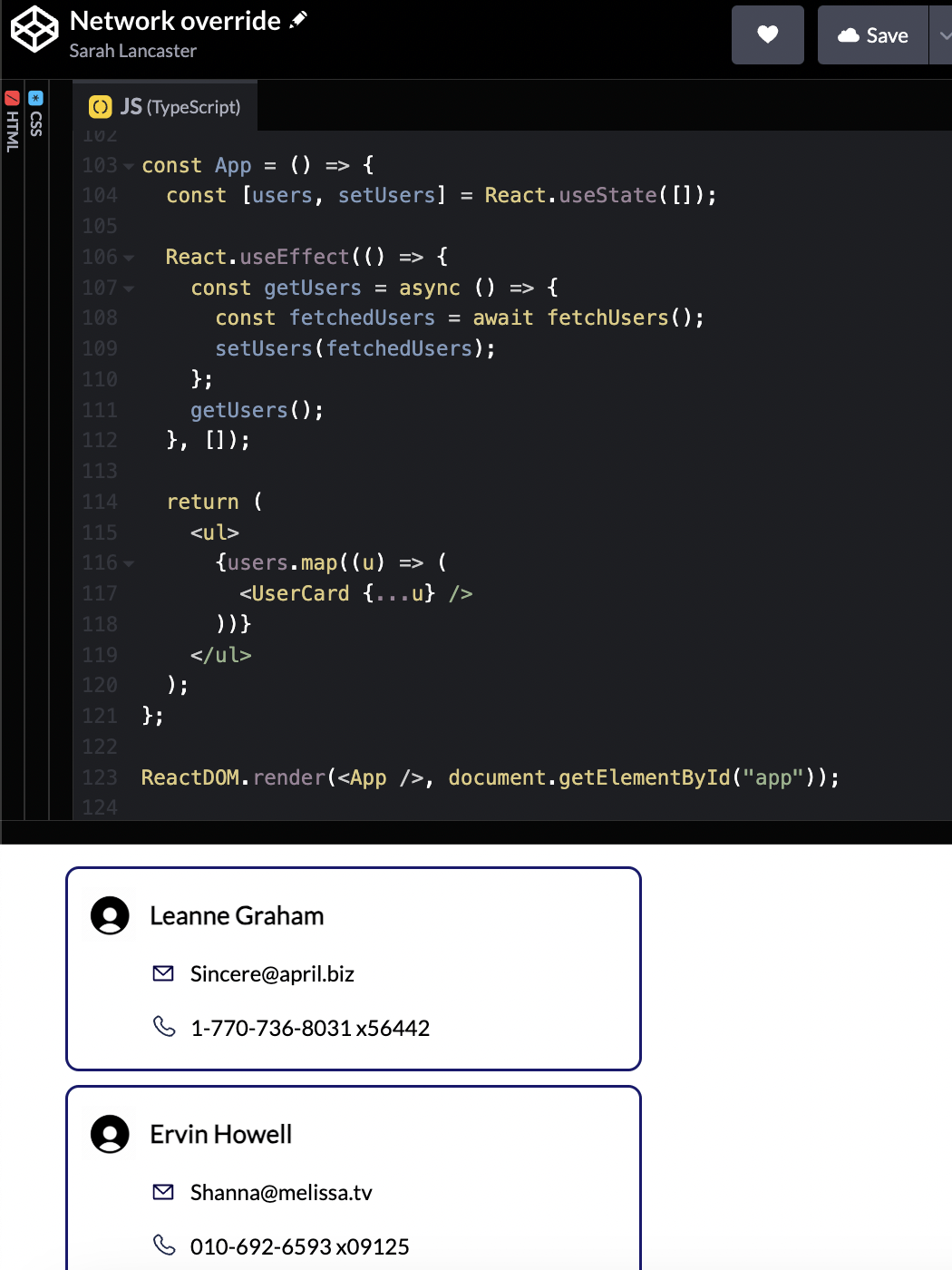
Screenshot of an app fetching users from an example API. The full code is available at the sandbox link below

This is the API response for the contacts in the chrome dev tools network tab, which you can open by:

  • Right clicking on the page
  • Clicking inspect
  • Navigating to the network tab

Screenshot of the network tab in chrome dev tools showing the users API network response.

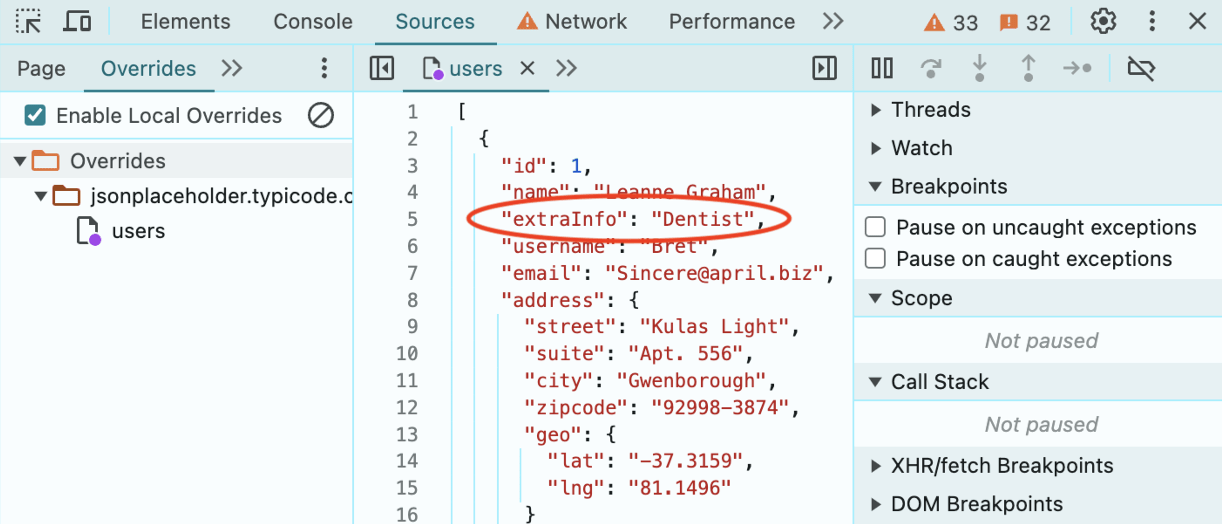
Let’s imagine our User object will have a new property added in the future - extraInfo which we want to display on the card if it exists.

We can update the front end code to reflect the future changes:

Screenshot of our app using data not yet available in the network response. The full code is available at the sandbox link below

But we can also test the expected API response before it has been deployed by creating an override for our request to the users endpoint:

Right click the request -> override content:
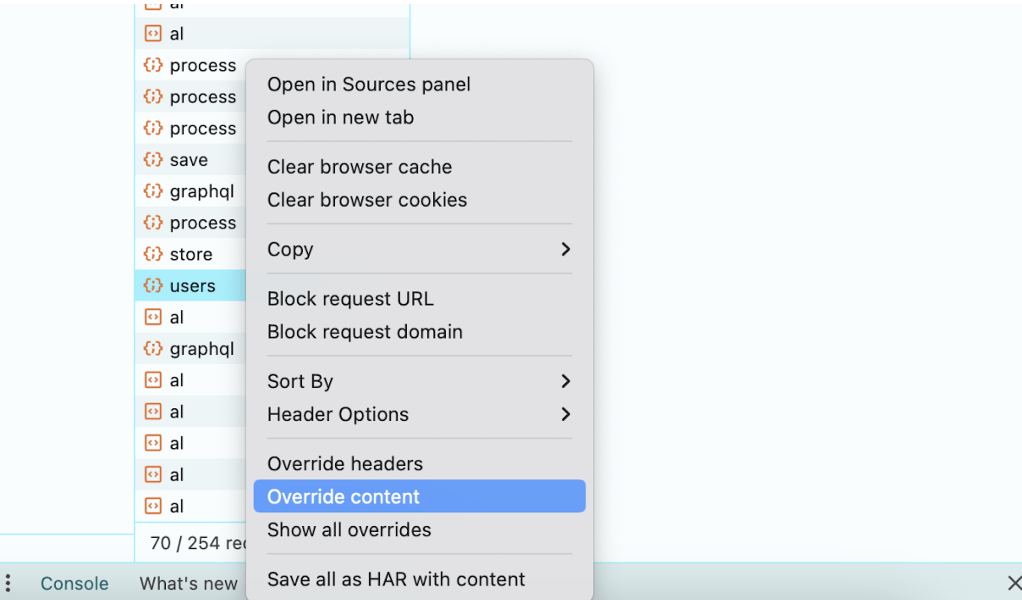
Screenshot of a right click on the users network response, 'override content' is being clicked.

Next we select a folder to save the override response data in:
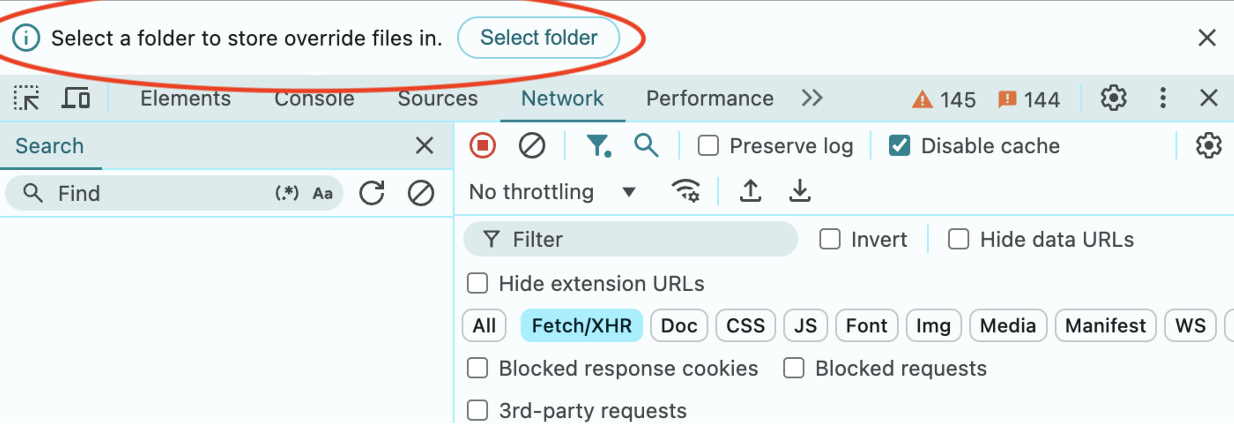
Screenshot of the chrome dev tools  asking where to save overrides
network chrome dev tools

Then we give DevTools access to the folder:

Network chrome dev tools displaying the overrides folder where edits to network responses can be saved

Now you can edit your request:

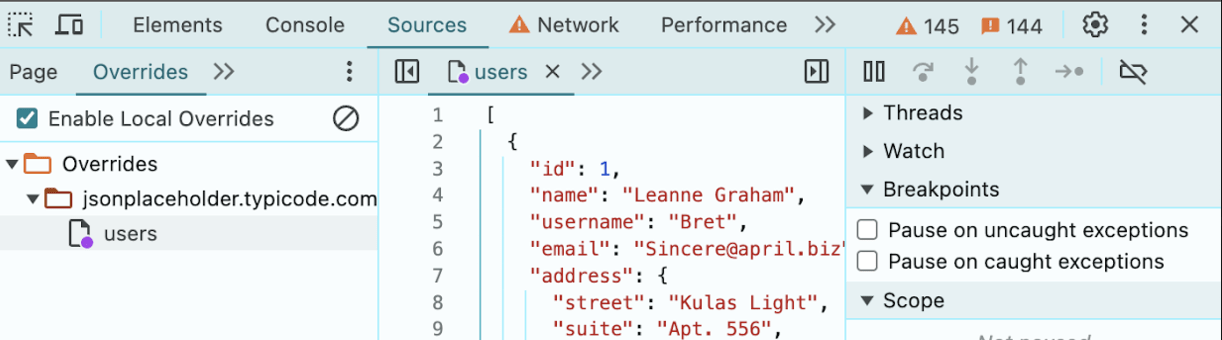
Screenshot of chrome dev tools in the overrides folder editing the users payload with the new data we want.

Lastly, refresh your page and the override will be returned rather than the real response:

Screenshot of the UI displaying the overridden data. The full code is available at the sandbox link below

Here in the network tab we can see the edited response has been returned and the new front end feature is displaying!

If you are interested in trying out editing a network responses with Chrome DevTools, fork this sandbox and add your own data to the users network response!

More tech articles:
Using ChatGPT to practice for frontend live coding interviews

  • En novembre 2025, nous avons lancé chez notre client un chantier qu’il repoussait depuis plusieurs années : moderniser son outil interne le plus critique. Conçu en 2019 pour porter son cœur administratif, ce logiciel est indispensable au travail de collaborateurs internes comme d'utilisateurs externes. Tout dysfonctionnement de cette application entraîne des répercussions opérationnelles et économiques immédiates. Sur le papier, le chantier semblait relativement clair : moderniser une applicati
  • Edit : découvrez notre nouveau site dédié à l'accessibilité : Frontguys A11Y MAJ nov. 2025 - La réponse directe : pour fluidifier la collaboration entre designers et développeurs, combinez intelligemment : * des outils de design & handoff (Figma ou Penpot, Zeplin), * des outils de documentation (Storybook, Zeroheight, Supernova), * des outils de QA visuelle (Chromatic, Percy), * et, depuis 2025, une nouvelle génération d’outils IA “design → code” comme Figma Make, Lovable, Bolt et Cursor,
  • Lors d'une mission récente j'ai récemment dû implémenter un chatbot. C'était une première et je me dis que c'est l'occasion parfaite pour vous partager mon expérience et des conseils si vous aussi passez par là. Objectif Usage Avoir un chatbot facilement utilisable sur n'importe quelle page, léger, performant et personnalisable, selon les besoins du client. En terme d'usage voici ce que je visais : <body> <chatbot toggle-button-text="Fragrance advisor" chatbot-header-t